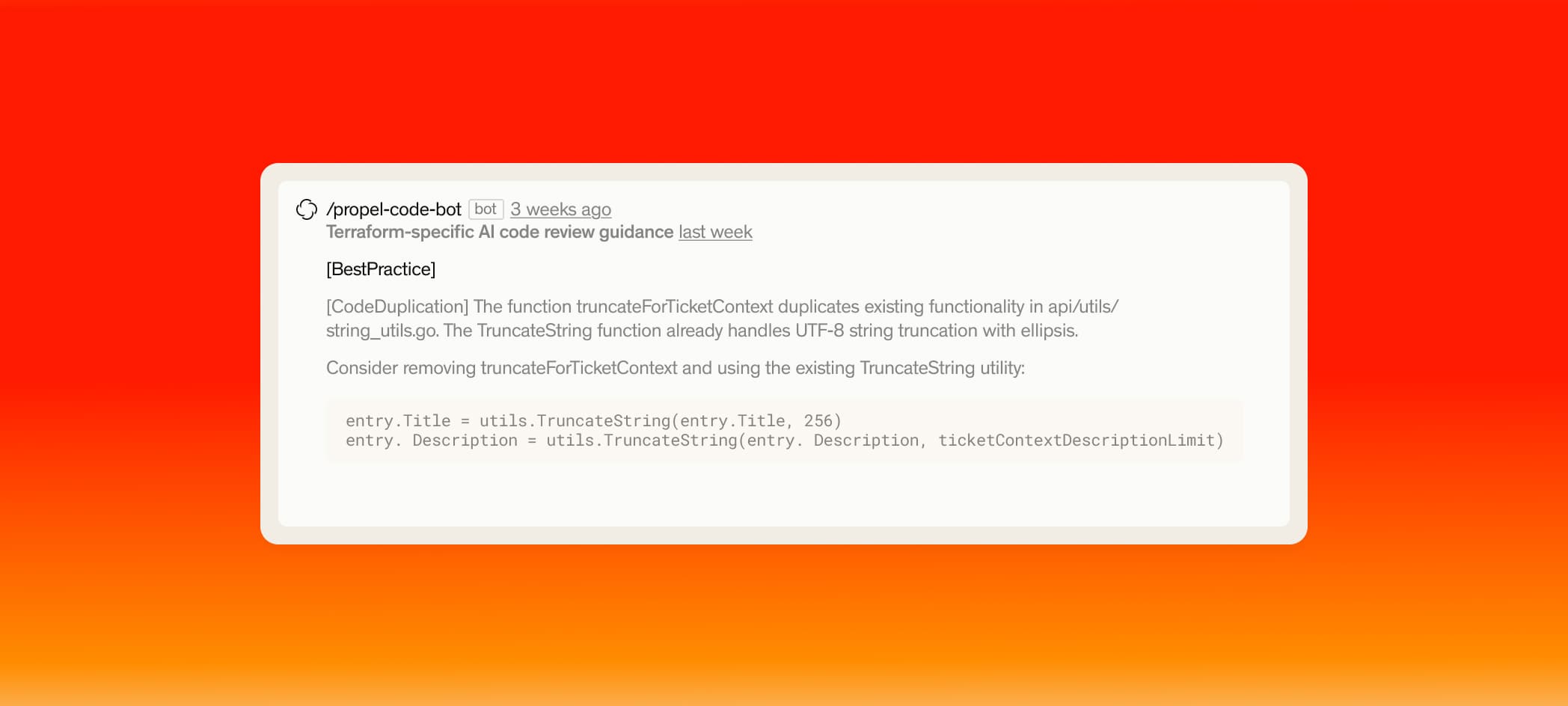
How to interact with Propel
A quick user guide for how to interact with Propel within Github. Covers how to trigger a review, adding to knowledge base, auto-naming, and reactions.
User Guide
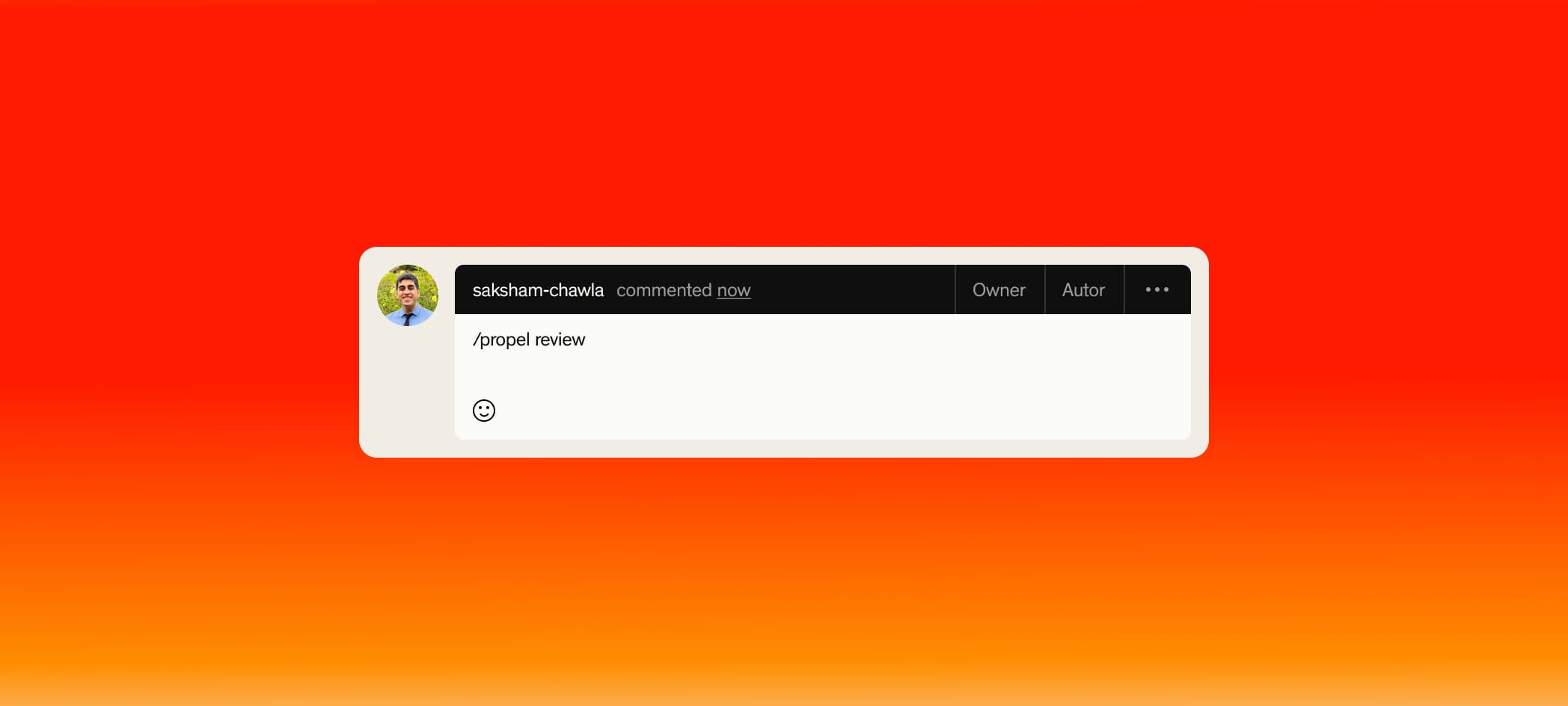
Triggering a review or re-review
Note: Reviews will happen automatically on PR creation. This command allows you to re-trigger a review from Propel
Knowledge Base
Teach Propel your team’s guardrails so reviews stay consistent. When a rule is added, Propel enforces it on every future pull request across your connected repositories.
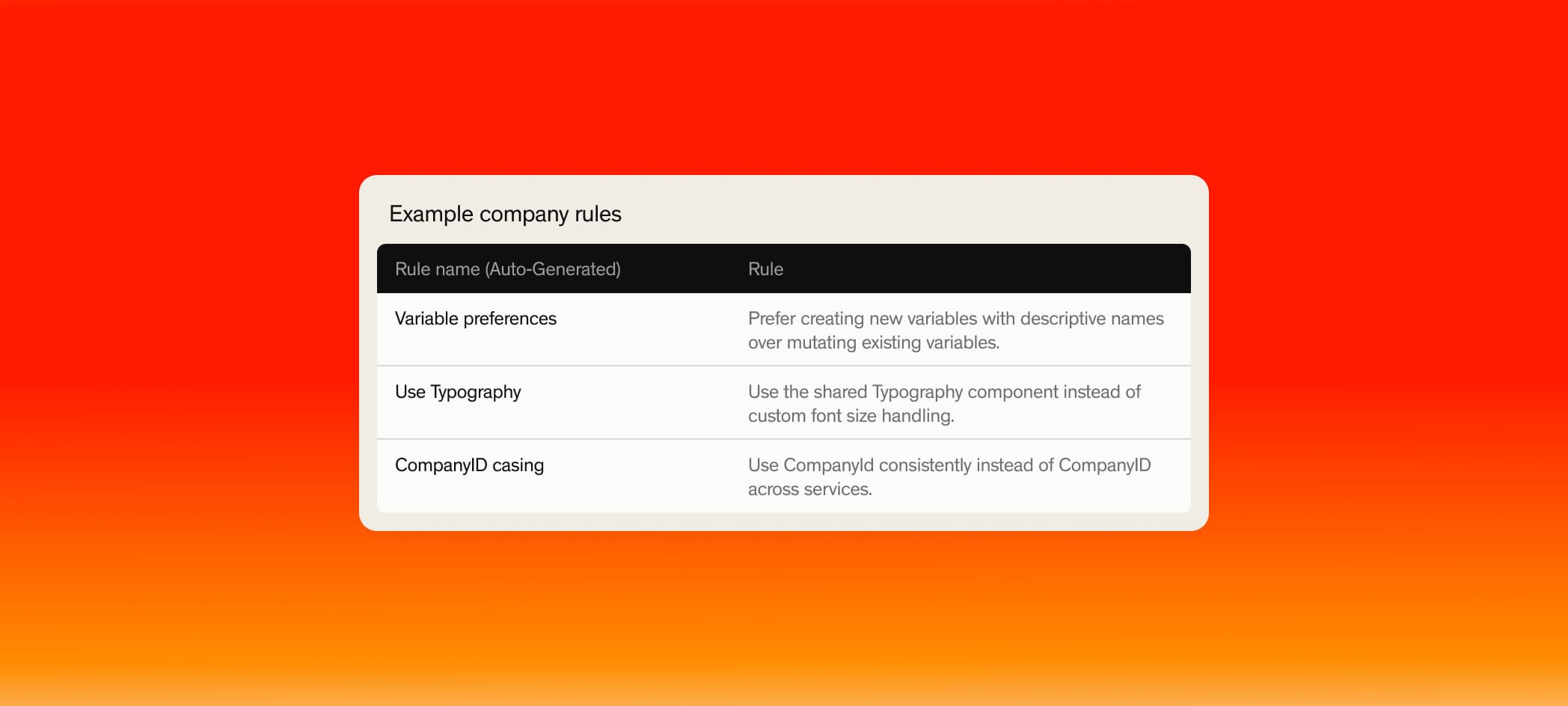
There are 4 main ways to add to your knowledge base:
1. Tell Propel directly in the pull request (remember to use /propel)
Lorem ipsum dolor sit amet, consectetur adipiscing elit. Curabitur at quam et nisl sodales tempor. In hendrerit odio eu ipsum sodales vulputate. Ut pellentesque facilisis fringilla. Nunc urna eros, luctus at velit ut, aliquam ornare lectus. Morbi dignissim mollis purus id suscipit. Aenean et erat enim. Pellentesque tempor tortor quis dolor sodales dictum quis nec velit. Etiam non dolor sit amet justo viverra volutpat a suscipit lorem. Class aptent taciti sociosqu ad litora torquent per conubia nostra, per inceptos himenaeos.
2. Add a rule in the knowledge base page
Lorem ipsum dolor sit amet, consectetur adipiscing elit. Curabitur at quam et nisl sodales tempor. In hendrerit odio eu ipsum sodales vulputate. Ut pellentesque facilisis fringilla. Nunc urna eros, luctus at velit ut, aliquam ornare lectus. Morbi dignissim mollis purus id suscipit. Aenean et erat enim. Pellentesque tempor tortor quis dolor sodales dictum quis nec velit. Etiam non dolor sit amet justo viverra volutpat a suscipit lorem. Class aptent taciti sociosqu ad litora torquent per conubia nostra, per inceptos himenaeos.
3. Add rules to .propel/rules and we will automatically pick up the rules in review
Lorem ipsum dolor sit amet, consectetur adipiscing elit. Curabitur at quam et nisl sodales tempor. In hendrerit odio eu ipsum sodales vulputate. Ut pellentesque facilisis fringilla. Nunc urna eros, luctus at velit ut, aliquam ornare lectus. Morbi dignissim mollis purus id suscipit. Aenean et erat enim. Pellentesque tempor tortor quis dolor sodales dictum quis nec velit. Etiam non dolor sit amet justo viverra volutpat a suscipit lorem. Class aptent taciti sociosqu ad litora torquent per conubia nostra, per inceptos himenaeos.
4. Add a specific file from your repo to the knowledge base page
Lorem ipsum dolor sit amet, consectetur adipiscing elit. Curabitur at quam et nisl sodales tempor. In hendrerit odio eu ipsum sodales vulputate. Ut pellentesque facilisis fringilla. Nunc urna eros, luctus at velit ut, aliquam ornare lectus. Morbi dignissim mollis purus id suscipit. Aenean et erat enim. Pellentesque tempor tortor quis dolor sodales dictum quis nec velit. Etiam non dolor sit amet justo viverra volutpat a suscipit lorem. Class aptent taciti sociosqu ad litora torquent per conubia nostra, per inceptos himenaeos.
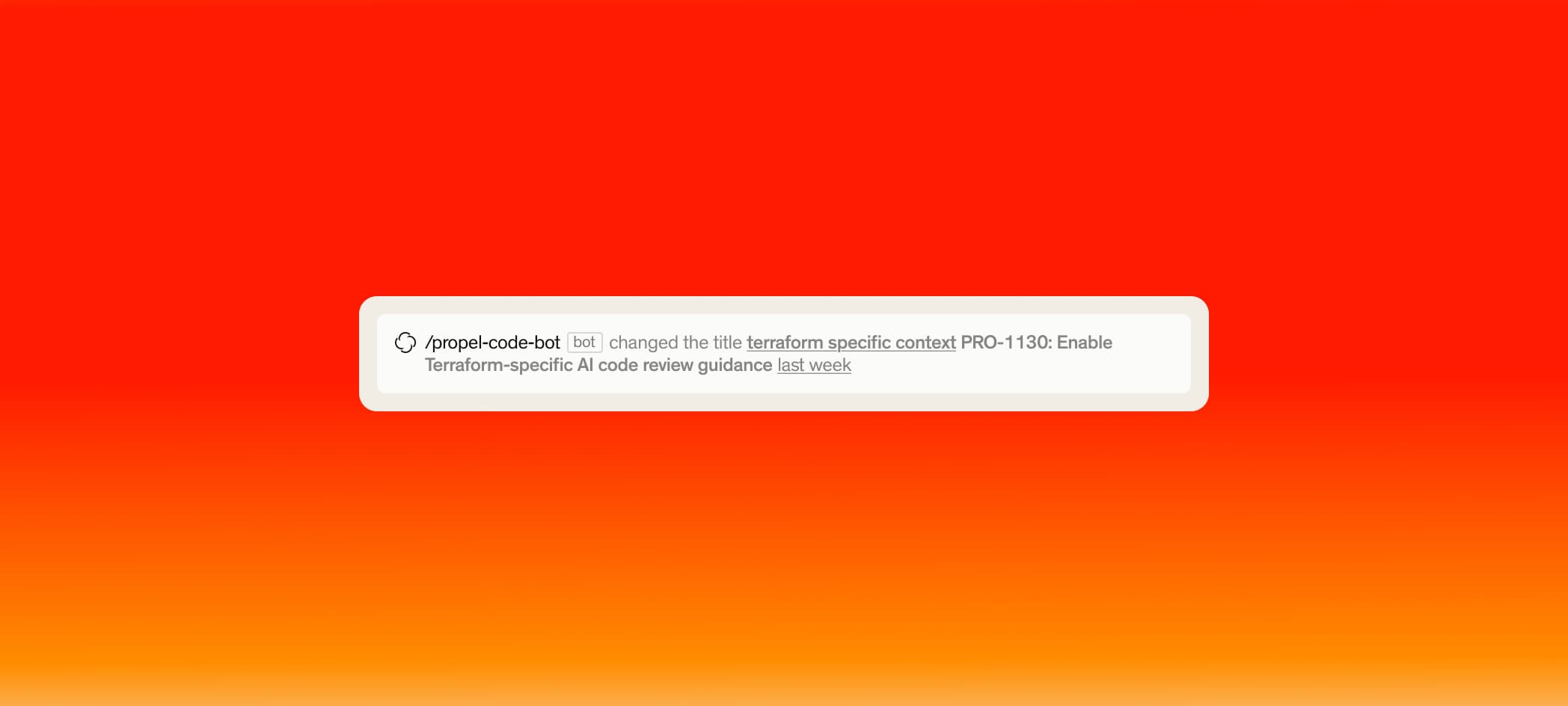
PR Auto-Naming
Name your PR's @auto - Propel will rename the PR based on the code changes
Name your PR's {ticket_number} @auto - Propel will rename and include ticket number in title
Reactions
A quick 👍 or 👎 helps us tune Propel to your company's needs